History
Chat
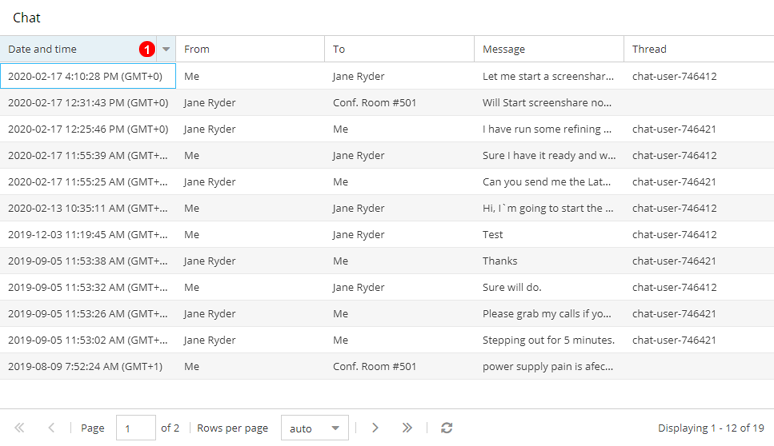
Here you can view history of Chats between users and in Conference Rooms.
- Click headers to filter history using specific criteria like date ranges etc.
CDR
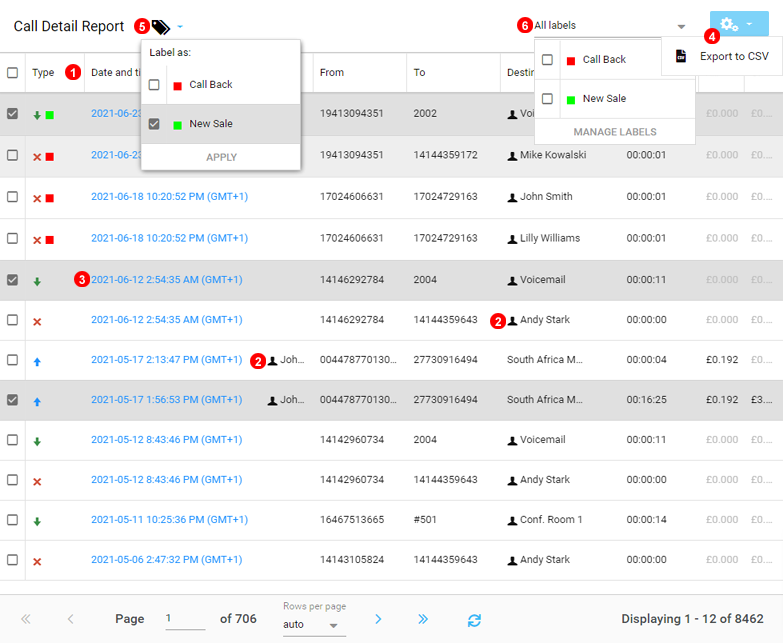
Here you can view Call Details Records.
- Click headers to filter history using specific criteria like date ranges etc.
- If a Contact for the source or destination is known the Contact will be displayed in the respective columns.
- Click icon shown as
(3)in Figure 5.2 above to view detailed call information. - Click icon shown as
(4)in Figure 5.2 above to export Call Details Records to .csv file. See CSV file columns description below for further details. - View and assign Labels to any selected Call Records, more on labels in Figure below.
- Filter Call Records according to slected labels.
CDR CSV export
Here’s a brief description of each column in your Call Detail Record (CDR) CSV export:
| Column Name | Description |
|---|---|
Date and time (UTC) |
The date and time the call was initiated, recorded in Coordinated Universal Time (UTC). |
Date and time (Local) |
The same timestamp as above, but adjusted to your local time zone. |
Type |
The direction or nature of the call — typically “Inbound” (incoming) or “Outbound” (outgoing). |
Caller ID |
The displayed caller identification — may include the number and/or name of the caller. |
Source |
The originating source of the call (often blank for inbound calls, or shows the extension/user for outbound). |
From ID |
The internal system ID or extension representing the call origin within the phone system. |
From |
The originating phone number (the number that initiated the call). |
To |
The destination phone number (the number that received the call). |
To ID |
The internal identifier, queue, or user ID the call was directed to. |
Destination |
The name or description of the final destination (e.g., “Contact Name” “United Kingdom Mobile”). |
Duration |
Total duration of the call in seconds (from start to end, including ringing and hold time). |
Connected Duration |
The actual time in seconds when the call was connected and audio was live. |
Rate |
The billing rate per minute applied to the call. |
Charge |
The total monetary charge for the call, calculated from connected duration × rate. |
Labels |
Any assigned labels or tags (e.g., “Sales,” “Support,” or campaign identifiers). |
Info |
Additional call metadata — can include queue, routing, or plan details. |
Notes |
Free text field for any call-related notes or comments |
Call ID |
The unique identifier of this specific call record in the telephony system. |
Root Call ID |
The ID of the original call if this call was part of a chain (e.g., IVR -> Queue -> transfer). |
Transferred |
Indicates whether the call was transferred (Yes/No). |
Inbound calls in VoIPstudio system often appear as multiple linked CDR records for one customer call. They share the same Root Call ID, but each line shows a different stage of the call’s journey.
CDR Call Labels
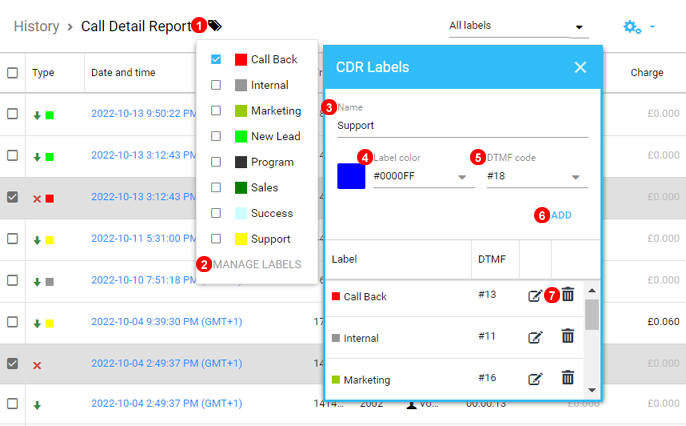
- With one or More Call Records Selected click the Labels Icon.
- Click manage Labels to open the create and edit menu.
- Name the new Label, short and simple generally works best.
- Select a Colour Identifier for the new Label.
- Call Label Prefix can be assigned for use while on call using 3rd party applications and Hardware Phones.
- Click add to save.
- Any existing labels can be deleted or edited.
Call Recordings
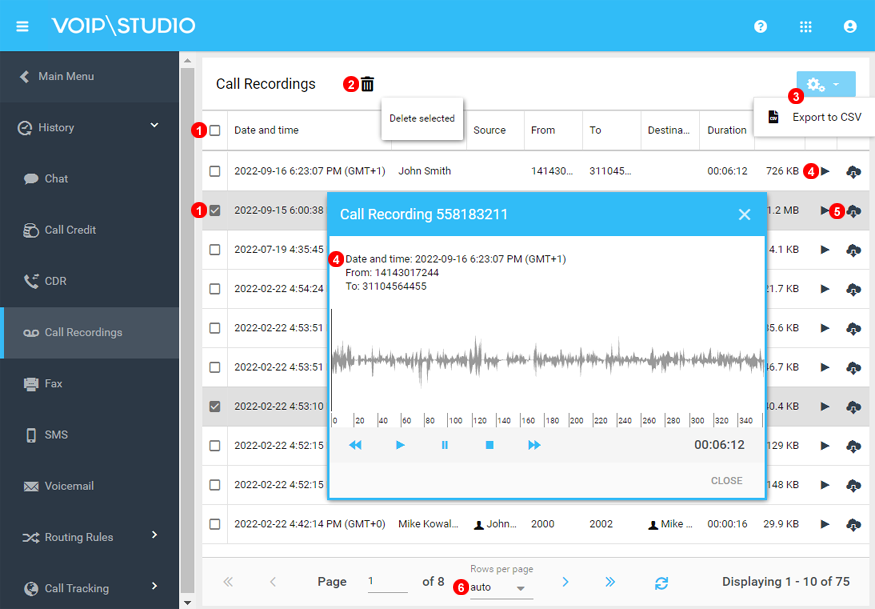
Here you can view Call Recordings history.
- Select the Call Recordings you want to remove.
- Click Delete to Remove selected Recording from the Server.
- Click icon shown as
(3)in Figure 5.4 above to download recordings history as Excel file. - Click icon shown as
(4)in Figure 5.4 above to playback recording audio. - Click icon shown as
(5)in Figure 5.4 above to download recording MP3 file. - Change how many Records show, Auto changes according to browser sizing.
Fax
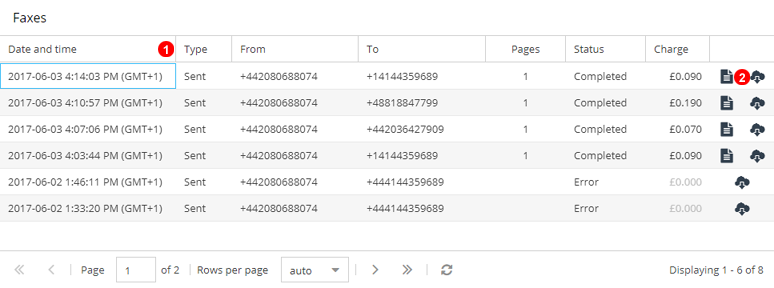
Here you can view Faxes history.
- Click headers to filter history using specific criteria like date ranges etc.
- Click icon shown as
(2)in Figure 5.5 above to download fax file or Confirmation file.
SMS
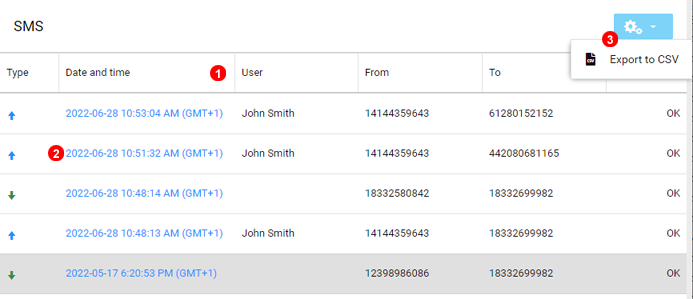
Here you can view SMS Messages history.
- Click headers to filter history using specific criteria like date ranges etc.
- Click icon shown as
(2)in Figure 5.6 above to view SMS message. - Click on Gear Icon as shown by
(3)in Figure 5.6
Voicemail
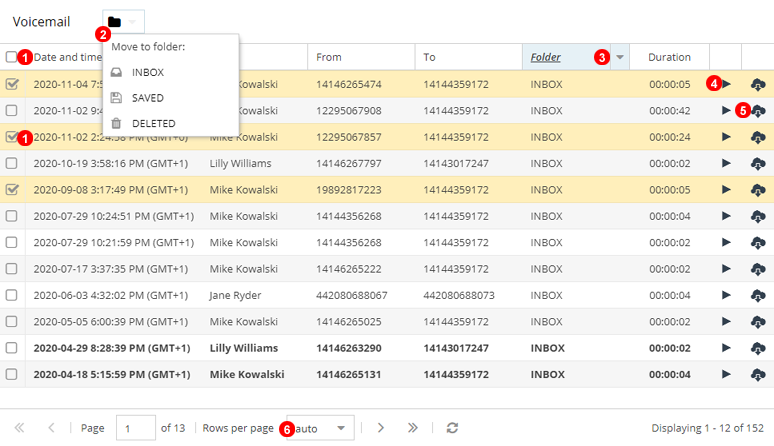
Here you can view Voicemail history.
- Select the voice mail messages to move or delete.
- From the dropdown select what action to apply to selected messages.
- Click headers to filter history using specific criteria like date ranges, folders etc.
- Click icon shown as
(4)in Figure 5.7 above to playback voicemail audio. - Click icon shown as
(5)in Figure 5.7 above to download voicemail MP3 file. - Change how many Records show, Auto changes according to browser sizing.
Call Tracking
Visitors
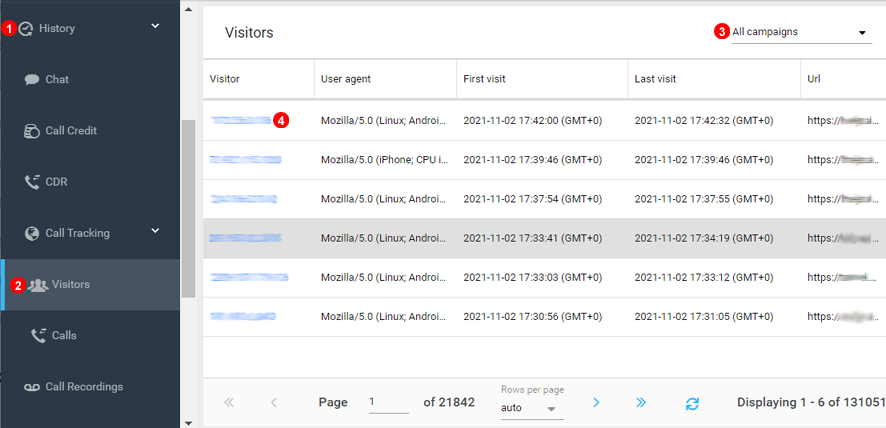
- Select History to Expand.
- Expand Call Tracking then Select Visitors.
- Filter by Campaign.
- By clicking Visitor IP Additional details will display as per figure below.
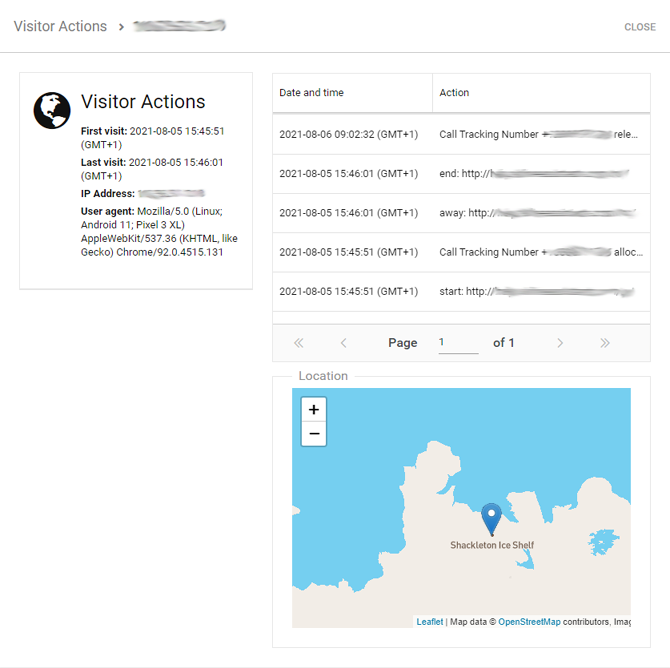
Additional Visitor details available like Browser Type, IP Location and Landing Page details.
Calls
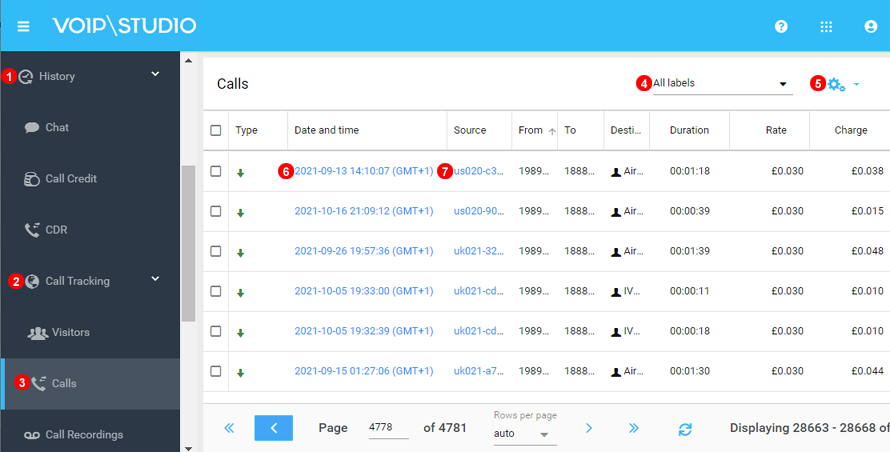
- Expand History.
- Expand Call Tracking.
- Select Calls.
- Filtering can be done by using CDR Labels.
- CLick the Gear Icon to Export filtered data.
- Click on Date and Time of call to view CDR data.
- By clicking Call Source Additional details will display as per figure below.
Additional Visitor details available like Browser Type, IP Location and Landing Page details.
Routing Rule Logs
Call Flow Logs for Routing rules can assist with optimizing call delivery.
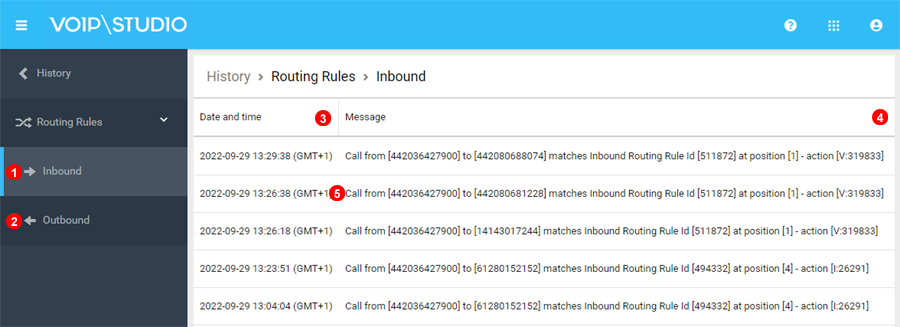
- Select to see all inbound calls caught and routed through routing rules.
- Select to see all oubound calls affected by routing rules.
- Select date and time filter as required.
- Call Details can be filtered to see specifics of rules that are in play.
- Full Call Record shown along with Rule and Result of routing.